
How to Use a Mailzzy Pre-Designed Template
Last updated on May 14, 2026
Mailzzy comes with a library of pre-designed email templates that you can use as a starting point for your campaigns. Templates save you time and ensure your emails look professional without needing any design experience.
What Are Pre-Designed Templates?
Pre-designed templates are ready-made email layouts created by Mailzzy. Each template includes placeholder text, images, and layout sections that you can customise to match your brand and message. They are fully editable using the drag-and-drop editor.
How to Access and Use a Template
- Go to the Campaigns page and click Create Campaign.
- Select Regular Campaign and give your campaign a name.
- Click Create Campaign to continue.
- Fill in your From information, Recipients, and Subject fields.
- Click Start Design to open the email editor.
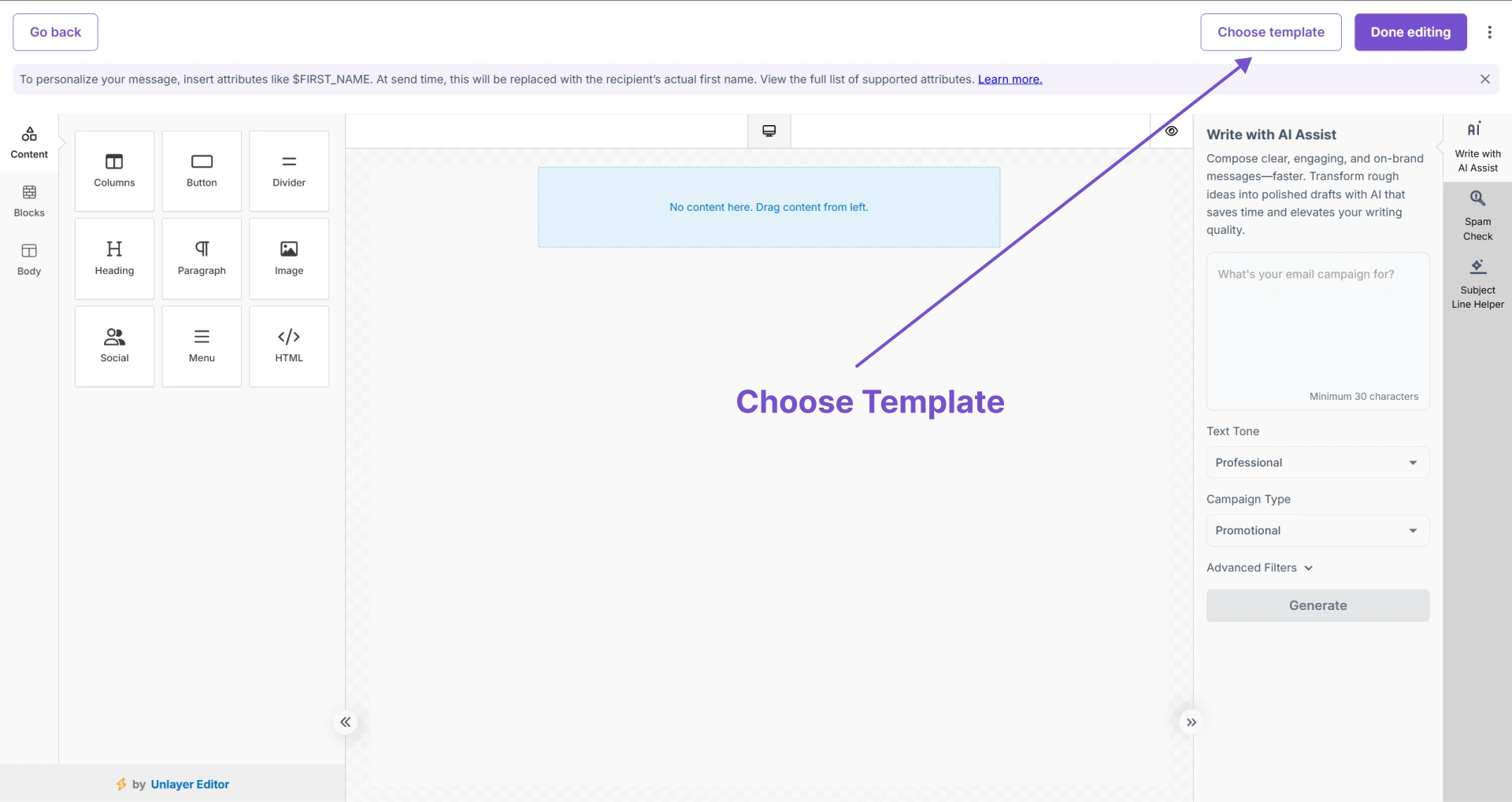
- In the editor, you will see the option to Choose a Template. Browse the available pre-designed templates.
- Click on a template to preview it, then click Use This Template to apply it to your campaign.
- Customize the template by clicking on any section to edit the text, swap images, change colors, or adjust the layout.
Customizing a Template
Once you have selected a template, you can edit every part of it:
- Text – Click on any text block to edit the copy directly
- Images – Click on an image to replace it with your own image
- Colors – Adjust background colors, button colors, and text colors to match your brand
- Buttons – Edit button text and update the link destination
- Layout – Add, remove, or rearrange content blocks using the drag-and-drop editor
Saving a Template for Future Use
If you have customized a template and want to reuse it for future campaigns, you can save it as a template. In the editor, look for the Save as Template option. Saved templates appear in your Templates library and can be selected when creating future campaigns.
Starting from Scratch Instead
If you prefer not to use a pre-designed template, you can start with a blank canvas and build your email from scratch using the drag-and-drop editor. Simply select the blank layout option when choosing your design.


Let's keep in touch
Sign up for our weekly email marketing newsletter and Mailzzy updates.
For more details, review our Privacy Policy


© 2026 Mailzzy. All rights reserved.