
How to Send Your First Test Email
Last updated on May 14, 2026
Before sending any campaign to your full contact list, it is good practice to send a test email first. A test email lets you preview exactly how your campaign will look in a real inbox, check that all links work, and confirm that images load correctly.
What Is a Test Email?
A test email is a preview version of your campaign sent to one or more specific email addresses — usually your own. It is only visible to the recipients you choose and is not sent to your contact list. Sending a test email does not affect your campaign status or count against your sending limits.
How to Send a Test Email in Mailzzy
- Go to the Campaigns page and open the campaign you want to test.
- In the campaign editing screen, look for the Send Test Email option. This is usually available in the campaign header or in the sending options area.
- Enter one or more email addresses to send the test to. Separate multiple addresses with a comma and press Enter.
- Click Send Test.
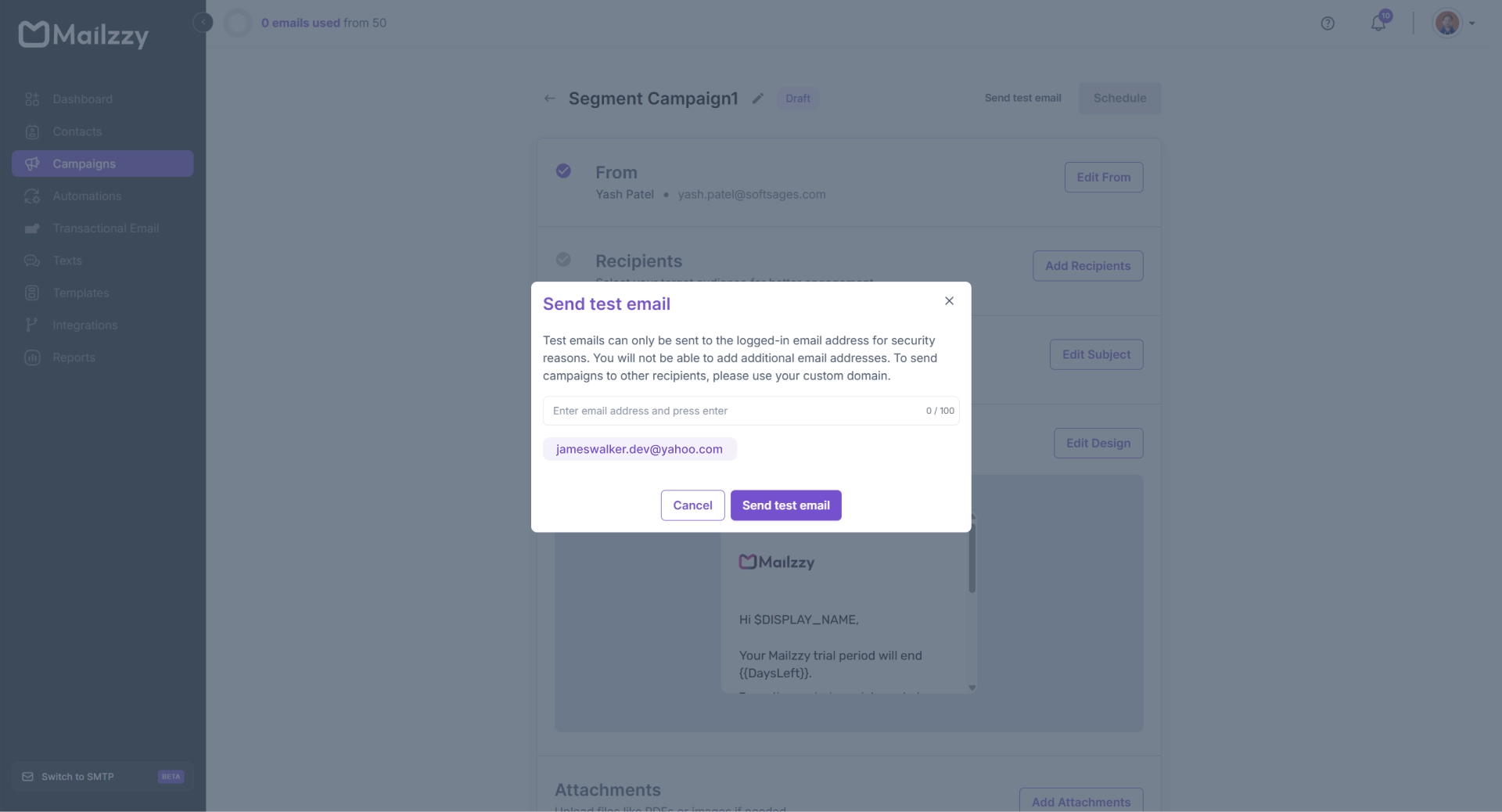
Note: This modal is for reference only. The actual modal may differ and appears when the sending domain is not custom.
Check the inbox of the address you sent to. The test email should arrive within a few minutes.
Note: If you do not receive the test email, check your spam or junk folder. If it lands there, review your sender setup and run the spam detection check on your campaign before sending.
What to Check in Your Test Email
When reviewing your test email, check the following:
- Subject line and preview text – Does the subject line display correctly? Does the preview text appear as expected?
- Design and layout – Does the email look the way you designed it? Are fonts, colors, and spacing, correct?
- Images – Do all images load? Is the alt text correct if images are blocked?
- Links – Do all links work and point to the correct destination?
- Personalization – If you are using merge tags such as $FIRST_NAME, do they display correctly?
- Unsubscribe link – Is the unsubscribe link visible and working?
- Mobile display – Open the test email on your phone to check how it looks on a smaller screen
Testing Across Multiple Email Clients
Different email clients can render the same email differently. If possible, send your test to addresses at Gmail, Outlook, and Apple Mail to check for any rendering differences before sending to your full list.


Let's keep in touch
Sign up for our weekly email marketing newsletter and Mailzzy updates.
For more details, review our Privacy Policy


© 2026 Mailzzy. All rights reserved.