
How to Use the Drag-and-Drop Email Editor
Last updated on May 18, 2026
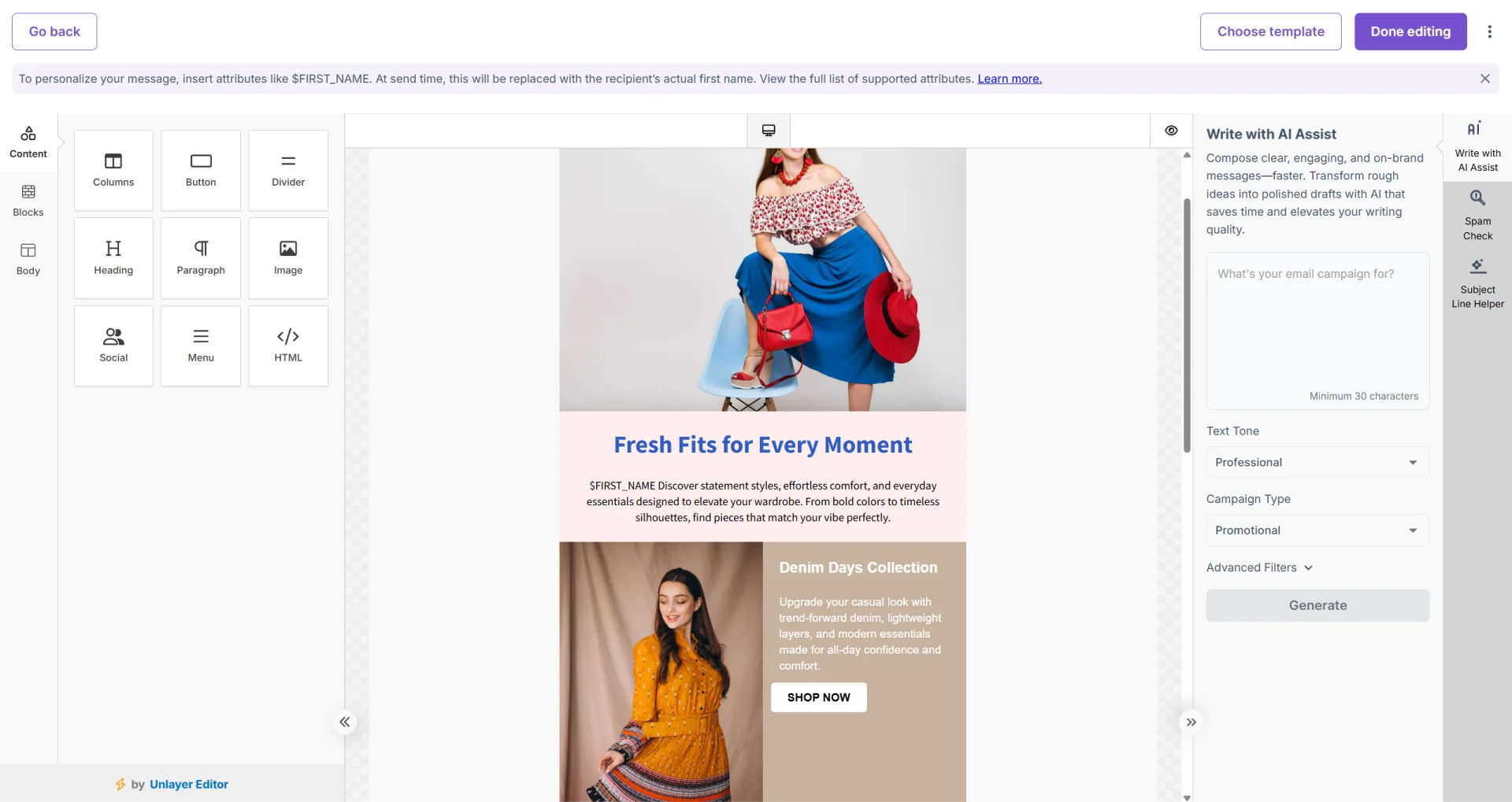
Mailzzy's drag-and-drop editor lets you build polished, responsive email designs without writing a line of code. Every structural and visual element — layout, text, images, buttons — can be added, positioned, and customized entirely through clicking and dragging.
Getting Into the Editor
The editor opens at the design step of campaign creation. Click Start Design on the campaign review screen to enter it. You can also access it from the Templates section when editing a saved template.
The Editor Layout
- Left panel — The content block library. All draggable elements live here: text blocks, image blocks, button blocks, dividers, social links, spacers, and more.
- Canvas — The central design area. This is the live preview of your email exactly as recipients will see it.
- Right panel — The settings panel. Clicking any element on the canvas opens its settings here — typography, colour, padding, link URLs, and other properties.
Building Your Email
- Find a content block in the left panel.
- Click and drag it onto the canvas. A blue highlight shows where it will be placed.
- Drop it into a position.
- Click on the block to select it and edit its properties in the left panel.
- To reorder blocks, drag them up or down within the canvas.
- To delete a block, select it and click the trash icon.
Editing Text Content
Double-click any text block to enter edit mode. Use the formatting toolbar to change font, size, weight, color, and alignment. To insert a merge tag for personalization, type it directly — for example: $FIRST_NAME or use the Merge tag option available in the toolbar.
Global Design Settings
The left panel also contains global design controls when no individual block is selected. Use these to set your email's background color, maximum width, default font, and link color — changes here apply across the entire email.
Desktop and Mobile Preview
Click Preview in the editor toolbar to switch between desktop and mobile views. Always review both before finalizing your design — elements that look fine on a wide screen sometimes need adjustment for smaller viewports.


Let's keep in touch
Sign up for our weekly email marketing newsletter and Mailzzy updates.
For more details, review our Privacy Policy


© 2026 Mailzzy. All rights reserved.