
How to Add Images to Your Campaign
Last updated on May 18, 2026
Images make your emails more visually engaging and help communicate your message faster than text alone. Mailzzy's editor gives you a straightforward way to add, resize, and manage images in any campaign through the built-in drag-and-drop editor and file manager.
Adding an Image to Your Email
- In the email editor, find the Image content block in the left panel.
- Drag it into your email canvas at the position you want.
- Click on the image placeholder to open its settings.
- Click Upload or Browse Files to open the file manager.
- Select an existing image or upload a new one from your device.
- The image appears in your email. Use the settings panel to adjust size, alignment, and spacing.
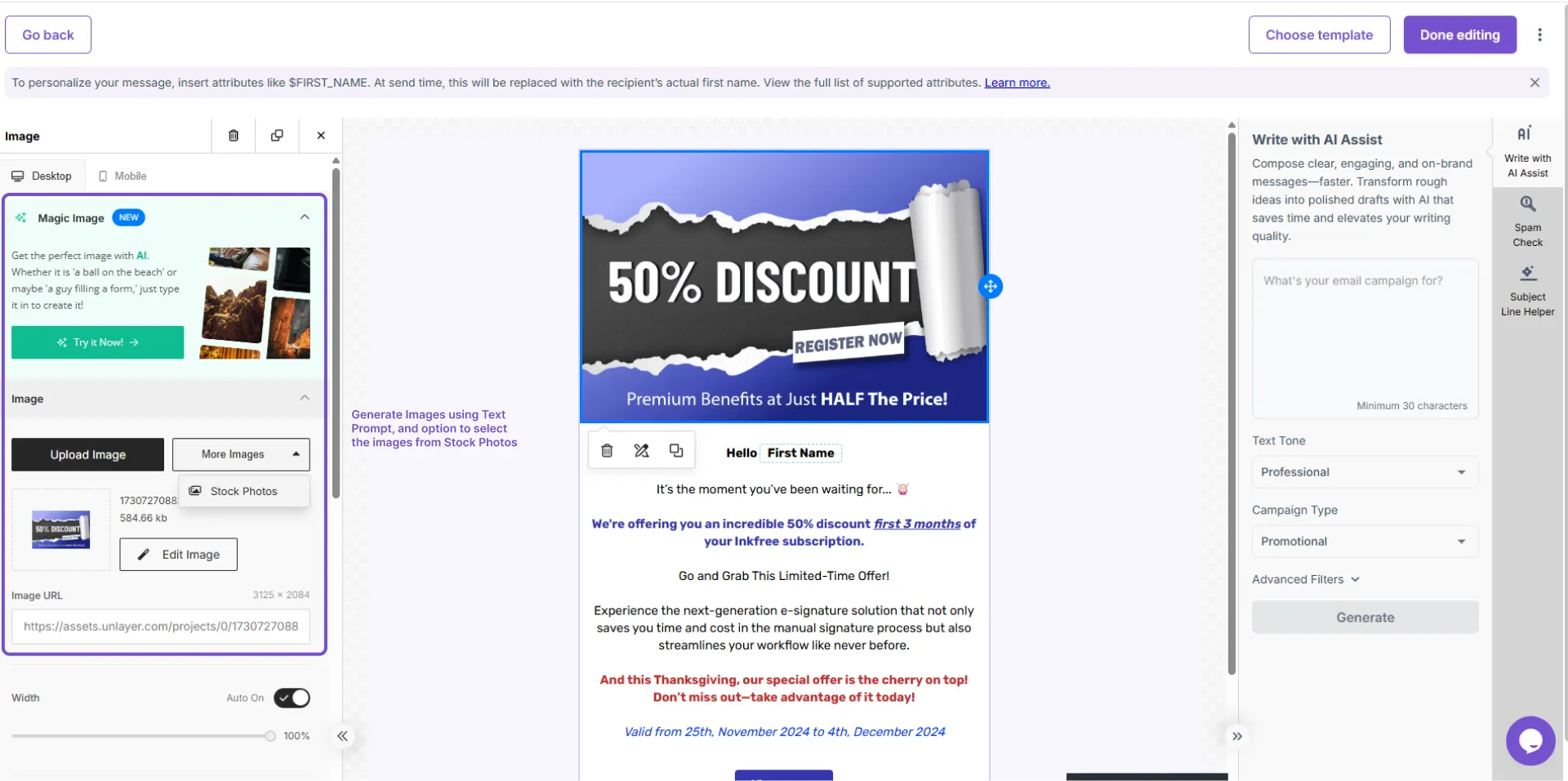
Image Best Practices
- Compress before uploading — Keep image file sizes below 1 MB where possible. Large files slow email loading.
- Use the right format — JPEG for photographs. PNG for graphics containing text or transparent areas.
- Always write alt text — Click any image in the editor and add a meaningful description in the Alt Text field. This displays when images are blocked.
- Balance images with text — Aim for at least 60% text content. Image-heavy emails are more likely to be filtered as spam.
- Preview on mobile — Check that images scale correctly in the mobile preview before sending.


Let's keep in touch
Sign up for our weekly email marketing newsletter and Mailzzy updates.
For more details, review our Privacy Policy


© 2026 Mailzzy. All rights reserved.