
How to Add Social Media Links to Your Campaign
Last updated on May 18, 2026
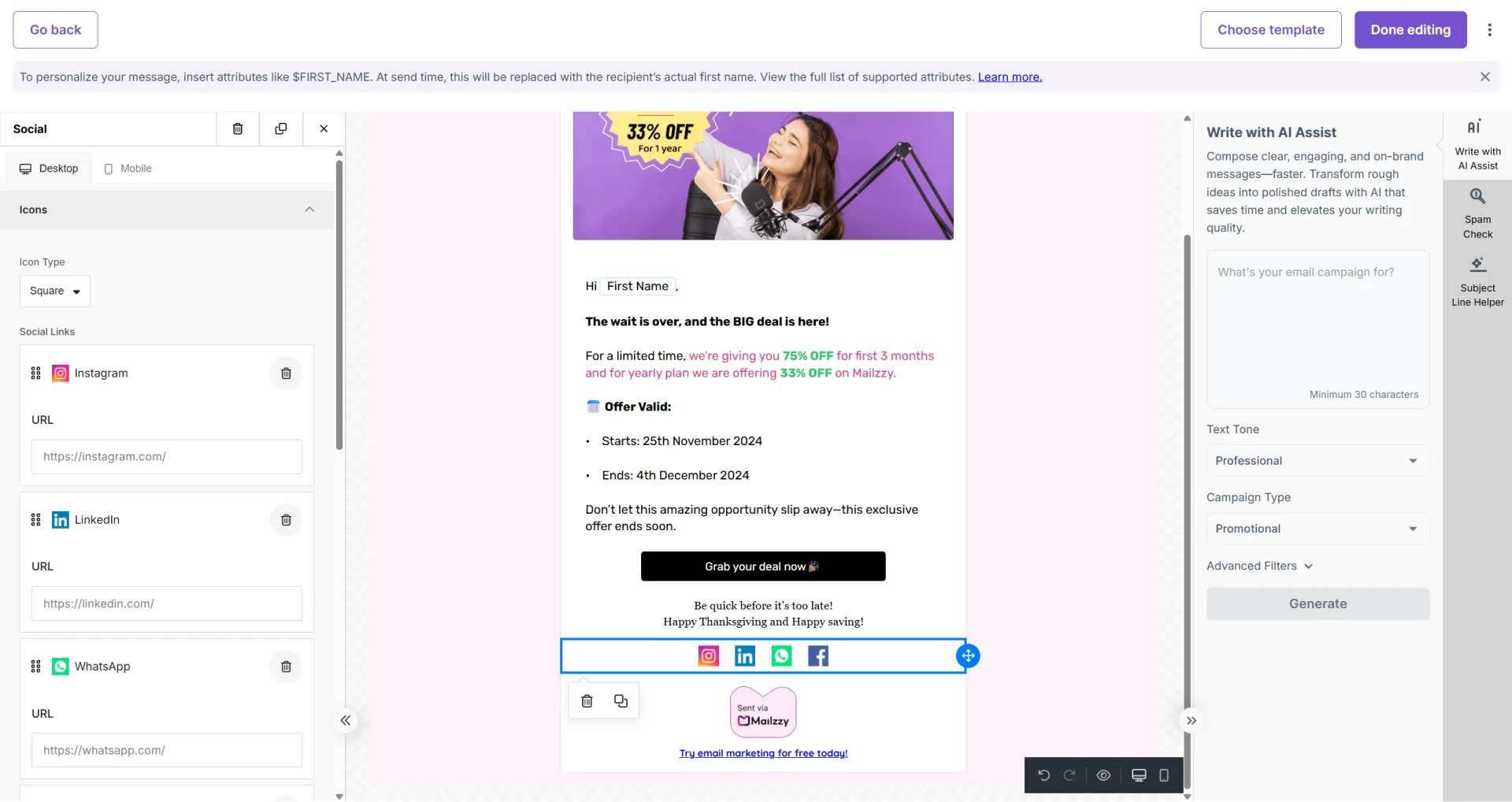
Including social media links in your email campaigns encourages subscribers to connect with you across all your active channels. Mailzzy's editor makes this simple with a dedicated Social content block that generates clickable platform icons linked to your profiles.
Adding Social Media Icons to Your Email
- In the email editor, find the Social or Social Links content block in the left panel.
- Drag it into your canvas — most commonly placed in the email footer.
- Click on the Social block to open its settings.
- Enter your profile URL for each platform you want to feature.
Customizing the Icons
From the Social block settings, you can adjust:
- Style — Choose from filled, outlined, or color icon variations
- Size — Scale icons up or down to suit your email layout
- Spacing — Control the gap between individual icons
- Alignment — Left, center, or right-align the icon row
Positioning Social Links in Your Email
- Footer — The standard location. Readers expect to find social links at the bottom of marketing emails.
- Header — Some brands lead with social links to draw early attention to their channels.
- Below the CTA — Provides an alternative engagement path for readers who are not ready to take the primary action.
Confirm Your Links Before Sending
Send a test email and click on every social icon to verify it opens the correct profile. An incorrect or dead link in a sent campaign cannot be corrected after delivery.


Let's keep in touch
Sign up for our weekly email marketing newsletter and Mailzzy updates.
For more details, review our Privacy Policy


© 2026 Mailzzy. All rights reserved.