
How to Manage Team Members or Sub-Accounts
Last updated on May 14, 2026
If you work with a marketing team, agency colleagues, or other people who need access to your Mailzzy account, you can manage their access through your account's team settings. This allows you to grant access without sharing your personal login credentials.
Why Use Team Access Instead of Sharing Login Details?
Sharing a single set of login credentials across multiple people creates serious security and accountability risks:
- There is no way to track which team member made a specific change or sent a campaign
- If one person's device is compromised, all activity under the shared account is exposed
- Removing one person's access means changing the password for everyone
Managing individual team member access solves all of these problems. Each person logs in with their own credentials, and you retain full control over who can access the account at any time.
How to Add a Team Member
- Log in to your Mailzzy account.
- Click on your profile name or avatar in the top-right corner.
- Navigate to Teams section.
- Click the Invite button.
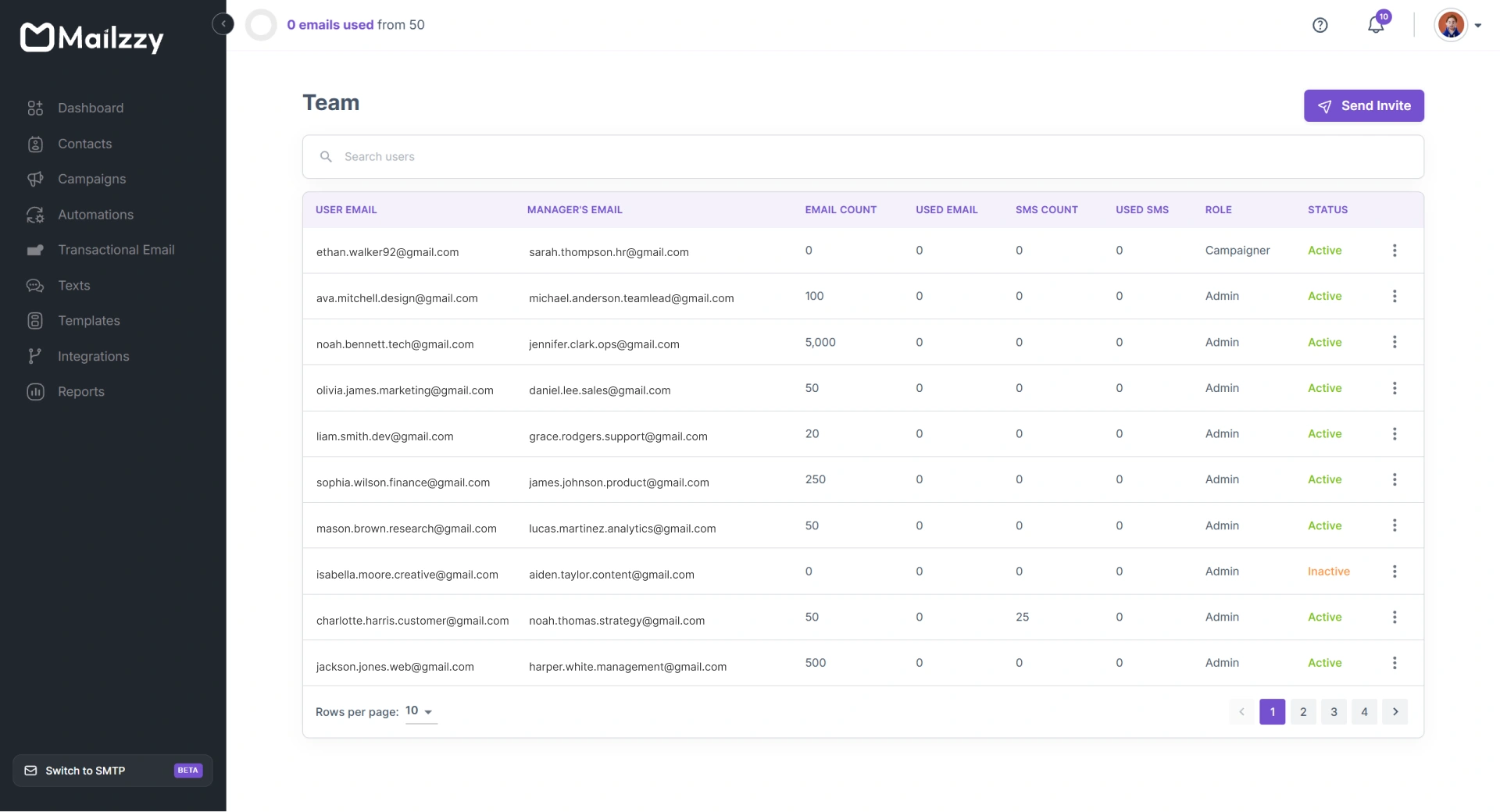
- Enter the email address and fill in the details of the person you want to invite.
- Assign the appropriate permission level for this user.
- Click Send Invite.
- The invited team member will receive an email invitation. They must click the link to accept and set up their own login.
Flexible Permission Levels
Mailzzy lets you control what each team member can see and do within your account. You can create custom roles tailored to your workflow, or choose from predefined roles for quick setup. This ensures every user has the right level of access—nothing more, nothing less.
Predefined roles include:
Full Access – Can create, edit, send, and delete campaigns; manage contacts; and access account settings.
Campaign Access – Can create and manage campaigns but cannot access billing or account-level settings.
View Only – Can view campaigns and reports but cannot make changes.
Note: Available permission options may vary depending on your plan. For advanced setups or multiple custom roles, contact the Mailzzy support team to discuss your requirements.
How to Remove or Deactivate a Team Member
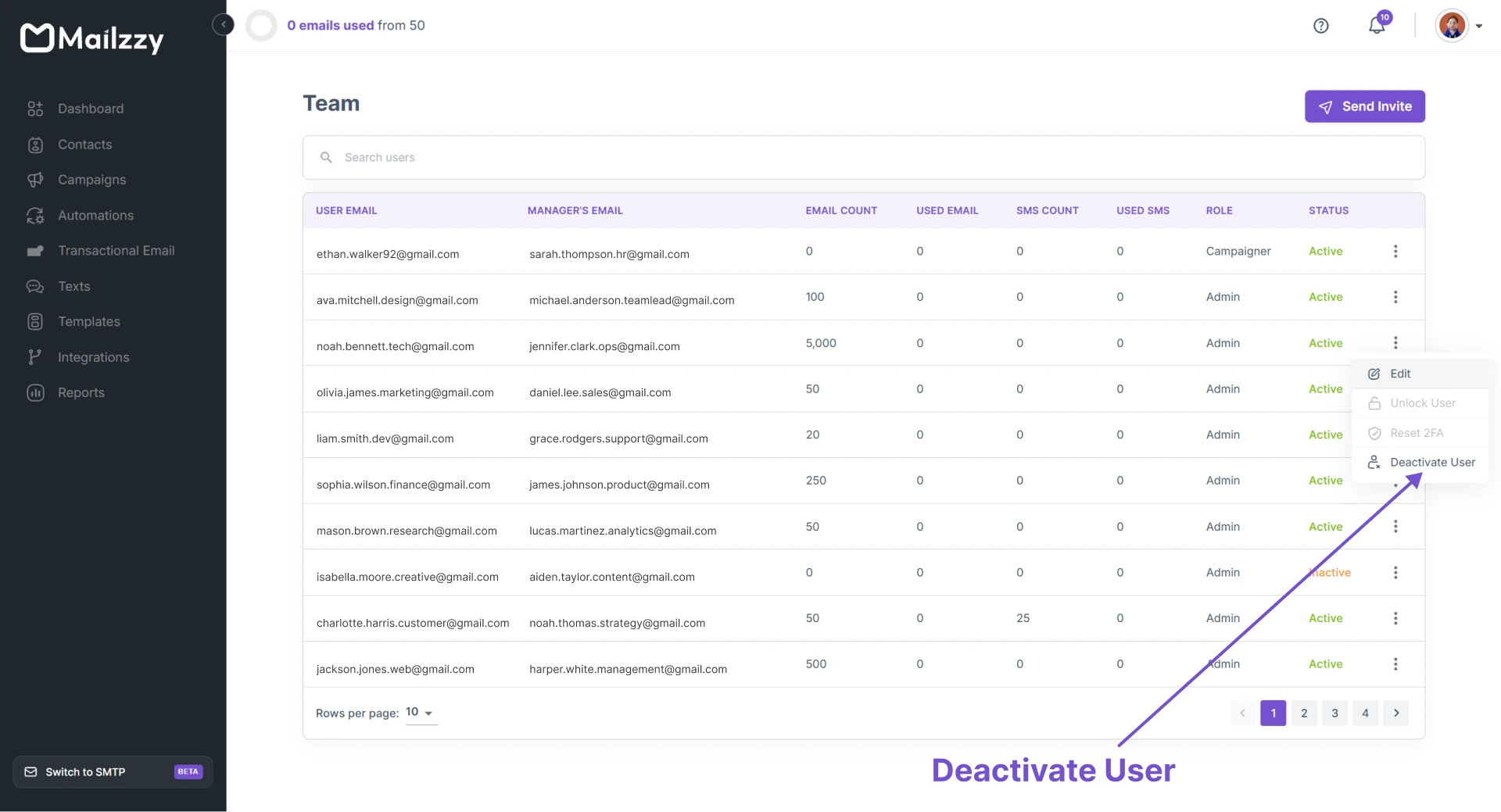
- Go to Teams.
- Find the team member you want to deactivate.
- Click three dots next to their name and deactivate user.
- Confirm the action.
Their access is revoked immediately. They will not be able to log in to your Mailzzy account from that point forward.
How to Update a Team Member's Permissions
- Go to Teams.
- Click Edit next to the relevant team member.
- Update their permission level.
- Click Save.
Related Help Articles


Let's keep in touch
Sign up for our weekly email marketing newsletter and Mailzzy updates.
For more details, review our Privacy Policy


© 2026 Mailzzy. All rights reserved.